Optimizing WebGL Shader Precision for Mobile Devices
Learn how optimizing WebGL shader precision for mobile devices enhances performance and battery life in your web applications.
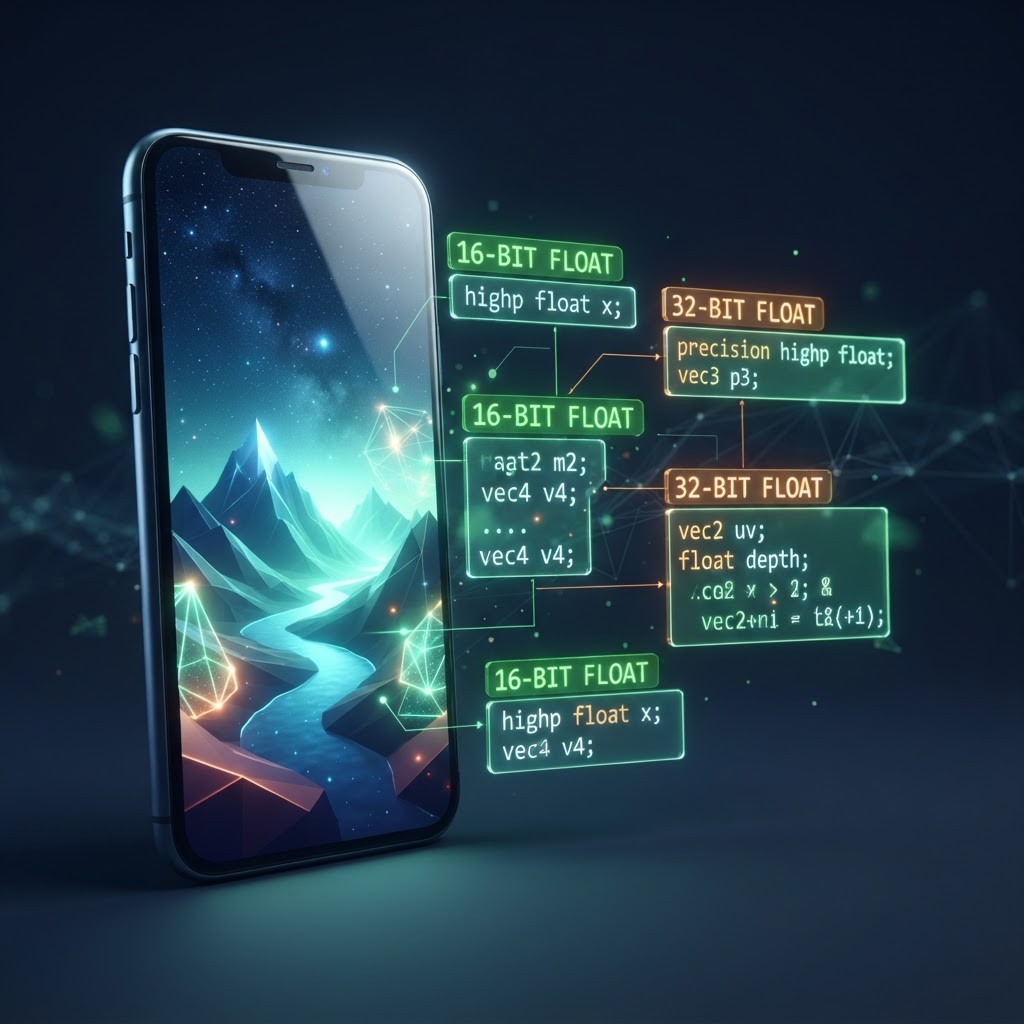
Improving Performance with WebGL Shader Precision
Optimizing WebGL shader precision for mobile devices is a critical step for developers aiming to build high-performance web experiences. Mobile hardware presents unique challenges such as thermal throttling, limited GPU memory bandwidth, and strict power constraints. When shaders are written without regard for precision qualifiers, they often default to the highest possible accuracy level, which can significantly degrade frame rates and increase battery consumption on smartphones and tablets.
The Role of Precision Qualifiers in Shaders
GLSL provides three levels of precision qualifiers: highp, mediump, and lowp. Understanding how these qualifiers interact with mobile hardware is the key to optimizing WebGL shader precision. Most desktop GPUs handle highp calculations natively with full 32-bit floating-point support, but many mobile GPUs optimize for power by handling mediump at a lower cost.
- highp: 32-bit floating point, typically used for vertex positions and complex calculations.
- mediump: 16-bit floating point, often sufficient for colors and lighting calculations.
- lowp: 8-bit fixed point, perfect for simple texture lookups and basic color output.
By systematically reviewing your code and applying the correct qualifiers, you can often see significant reductions in GPU load. Mobile browsers are particularly sensitive to high-precision operations, and failing to limit these can lead to stuttering in complex scenes.
Comparison of Precision and Performance
| Qualifier | Bit Depth | Typical Use Case | Performance Impact | | :--- | :--- | :--- | :--- | | highp | 32-bit | Position data, depth | High (Heavy) | | mediump | 16-bit | Normal vectors, light | Moderate | | lowp | 8-bit | Color output, simple math | Low (Efficient) |
Strategies for Optimizing WebGL Shader Precision
To begin optimizing WebGL shader precision, you should first audit your existing vertex and fragment shaders. Check for variables that do not require 32-bit accuracy. For example, light intensity or simple color interpolations rarely need highp. Changing these to mediump is a low-risk way to gain immediate performance improvements on mobile devices.
Another strategy involves the use of precision pragmas. At the top of your fragment shader, you can define a default precision. While highp is usually required for vertex shaders, setting the default to mediump for fragment shaders can save significant clock cycles. Always verify your visual output after making these changes to ensure that quantization artifacts are not visible in your gradients or lighting.
Mobile Device Compatibility and Best Practices
Always ensure that your code handles the lack of highp support in certain fragment shader implementations. Some older mobile devices do not support highp in fragment shaders at all. You can use the precision qualifier feature detection to provide fallback paths. Keeping your math operations efficient by avoiding unnecessary divisions and using built-in functions like dot or mix is also vital. The goal when optimizing WebGL shader precision is to strike a balance between visual fidelity and device responsiveness.
Frequently Asked Questions
What is the main benefit of using mediump instead of highp? Using mediump reduces the load on the mobile GPU, which leads to better frame rates and improved thermal performance.
Will lowering precision affect my visual quality? In many cases, the difference between 32-bit and 16-bit is imperceptible for tasks like color blending and lighting, though it may cause banding if used for position calculations.
Should I use lowp for everything? No, lowp is generally only suitable for final color results. It is rarely accurate enough for geometric transformations or intermediate lighting math.
If you need to optimize your other media assets before deploying your WebGL projects, File Optimized allows you to compress and convert images, audio, and videos directly in your browser with complete privacy and zero server uploads.